
What’s Changing?
With the move to a fully Microsoft environment, your ZENworks Application Launcher (ZAP) is going away. So, the way you access your applications is going to change! To access your applications going forward, there are four main methods:
Option 1: Desktop Icons
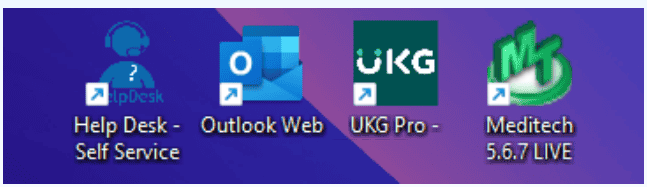
Core applications used throughout the organization will be located on the desktop.
1. Locate the application’s desktop icon.
2. Double-click the icon.
Option 2: Search Function
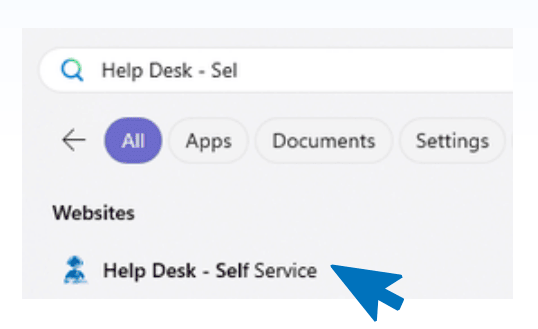
Quickly search and open your applications.
1. Click the Windows Start button.
2. Start typing the name of the application.
3. Click the application from the search results.
Tip: This is the fastest way to open any installed application, as you don’t have to go looking for it.
Option 3: Pinned Apps
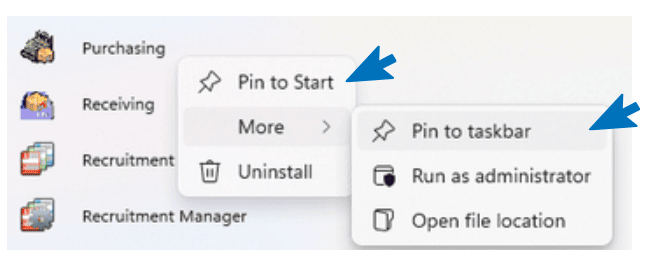
Personalize your desktop! Pin your frequently used applications to the Start menu or taskbar.
1. Click the Windows Start button.
2. Click All.
3. Locate the application in the list.
4. Right-click and select Pin to Start or More > Pin to taskbar
Option 4: Browse All Apps
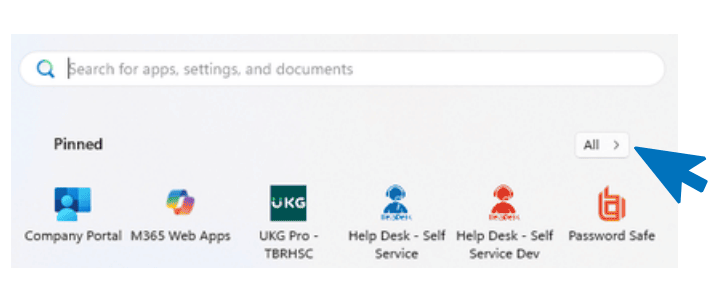
View all your installed applications to locate the one you need.
1. Click the Windows Start button.
2. Click All.
Application not listed? Click on the Company Portal icon located on the desktop and see what’s available for you to install.
For IT assistance or missing applications, please contact the Help Desk: Email Help.Desk@tbh.net | Phone 807-684-6411