
With the switchover from ZENworks to Intune, everyone has access to the OneDrive Sync App! The
OneDrive Sync App lets you access your OneDrive using the computer’s File Explorer, in addition to the
web. Note: this process must be done on each computer you use.
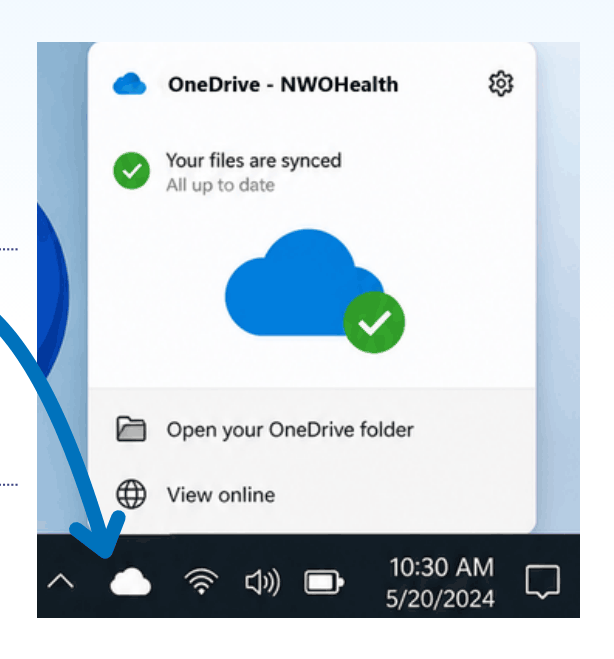
Step 1: Open the OneDrive App
- Click the cloud icon in your system tray.
- If you can’t find it, try clicking the up-arrow to see more icons!
Step 2: Sign in to OneDrive
- If you’re not automatically signed in, you must go through the sign in process…
- Click the sign in button, then follow the prompts and log in with your @TBH.net account.
- On the Back up folders on this PC prompt, ignore the red text and click Next.
Step 3: Access Your Files!
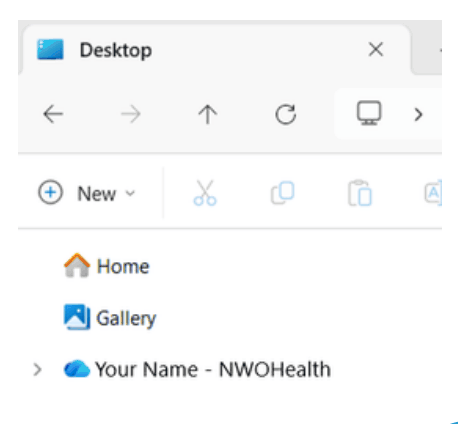
- When the OneDrive Sync App is connected to your account, the cloud icon will be blue and you will have a NWOHealth folder in your File explorer!
For more assistance, check out the M365 Training SharePoint site.
Questions? Contact the Help Desk: Email: Help.Desk@tbh.net | Phone: 807-684-6411